Contents (8)
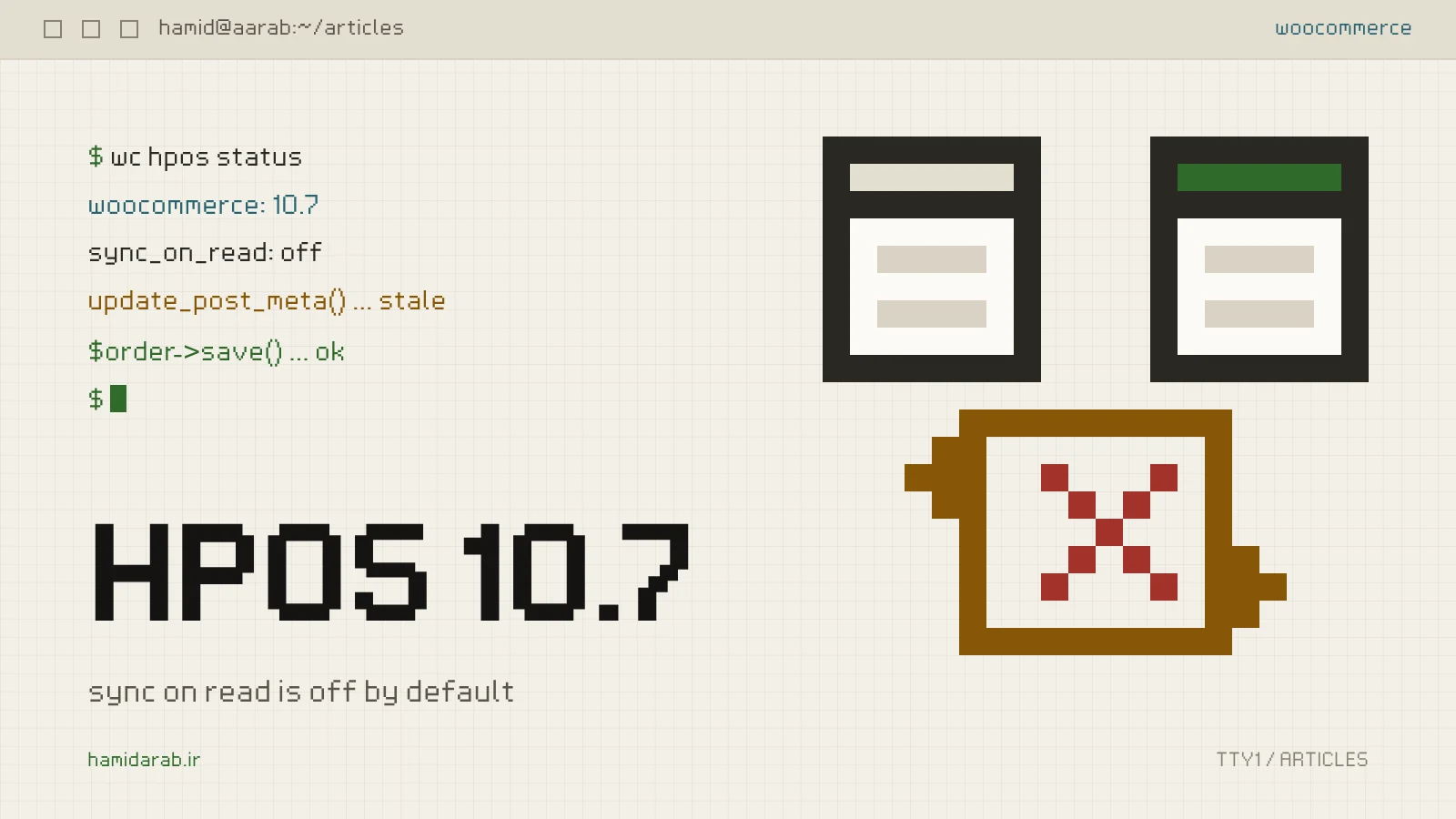
If you have worked with WooCommerce for a few years you know HPOS: orders stored in dedicated tables instead of wp_posts and wp_postmeta. What got less attention is a change in WooCommerce 10.7, released on 14 April 2026: the “sync on read” mechanism is now disabled by default.
The change shows no error and breaks no page. An order’s status may simply not stay what your code thinks it wrote. It is the kind of bug you find three weeks later, from a customer complaint.
What sync on read actually did
With HPOS and compatibility mode both on, WooCommerce keeps data in two places: the new HPOS tables and the old posts tables. Normal syncing runs from HPOS to posts.
Sync on read was the way back. When an order was read, WooCommerce compared timestamps on both sides, and if the posts data was newer (someone had written there directly, bypassing WooCommerce) it pulled that data back into HPOS.
That kept old code alive. But in the WooCommerce team’s own words, it could also cause “order status reversions or stale data overwriting current HPOS records”. Sometimes old data wiped out correct data.
Who is affected
If your store runs HPOS with compatibility mode and has plugins or custom code that write orders outside WooCommerce, this change concerns you directly. Those paths include:
update_post_meta( $order_id, ... )wp_update_post( array( 'ID' => $order_id, 'post_status' => ... ) )- raw SQL against
wp_postsorwp_postmetafor orders
From 10.7 on, those writes no longer reach HPOS automatically.
A store whose plugins are all HPOS-compatible, or one still on legacy posts storage, will not notice anything.
Step one: find the suspicious code
I always start with a plain search through custom plugins and the theme:
grep -rnE "update_post_meta|get_post_meta|wp_update_post|delete_post_meta" \
  wp-content/plugins/my-custom-* wp-content/themes/my-theme \
  | grep -iE "order|_billing|_shipping|_payment|shop_order"
It is not precise and it will return false positives, but it gives you a list to review one by one. Anywhere an order ID is passed to one of these functions has to move to WooCommerce’s CRUD layer. Run a second search for $wpdb in the same folders.
Step two: the right replacement
The replacement pattern is almost always the same: get the order with wc_get_order, change it through its own methods, then call save().
// Before: writes straight to postmeta and skips HPOS.
update_post_meta( $order_id, '_tracking_code', $code );
wp_update_post( array( 'ID' => $order_id, 'post_status' => 'wc-completed' ) );

// After: goes through WooCommerce's CRUD layer.
$order = wc_get_order( $order_id );
if ( $order ) {
	$order->update_meta_data( '_tracking_code', $code );
	$order->set_status( 'completed', __( 'Shipped with tracking code.', 'my-plugin' ) );
	$order->save();
}
For reads, use $order->get_meta( '_tracking_code' ) instead of get_post_meta( $order_id, '_tracking_code', true ). To search orders, use wc_get_orders() instead of a WP_Query on shop_order.
Declare compatibility in the main plugin file, so WooCommerce knows the plugin understands HPOS:
add_action( 'before_woocommerce_init', function () {
	if ( class_exists( \Automattic\WooCommerce\Utilities\FeaturesUtil::class ) ) {
		\Automattic\WooCommerce\Utilities\FeaturesUtil::declare_compatibility( 'custom_order_tables', __FILE__, true );
	}
} );
If you add a meta box to the order screen, get the screen ID with wc_get_page_screen_id( 'shop-order' ) rather than the hard-coded shop_order. Under HPOS the order edit screen is no longer a post screen.
Step three: test before a customer does
WooCommerce provides the switch for testing. On staging, turn sync on read off explicitly and walk through every path where your custom code touches orders:
// Staging only: behave like WooCommerce 10.7+ and make sure nothing depends on sync on read.
add_filter( 'woocommerce_hpos_enable_sync_on_read', '__return_false' );
If you have no time to fix things yet, the same filter with __return_true brings back the old behaviour. Treat it as a painkiller only: the WooCommerce team has said sync on read may be removed completely in a future version.
Step four: turn compatibility mode off
Once you are sure no code writes to the posts tables directly, and the store has run for a while on HPOS with compatibility mode without problems, you can turn compatibility mode off under WooCommerce › Settings › Advanced › Features.
The result is one write fewer on every order change. On busy stores that adds up, especially together with 10.7’s own optimisations; for example, the orders REST endpoint dropped from 271 queries per request to 132.
A short checklist
- Find every direct write to orders (
*_post_meta,wp_update_post,$wpdb). - Move them to
wc_get_order, setters andsave(). - Declare
custom_order_tablescompatibility in your plugin. - Test on staging with
__return_false: payment, status changes, refunds, and every cron job or webhook that changes orders. - After a few trouble-free weeks, turn compatibility mode off.
HPOS was always meant to separate orders from the posts table. Sync on read was only a transition period, and that period is ending. The sooner your code moves to CRUD, the calmer the next WooCommerce upgrade will be.
Sources
$ ./request_review
Facing the same problem in your own store?
Senior WordPress and WooCommerce backend engineering for complex production problems.
Request a Technical Assessment
## Comments